HappyEverAfter User Guide
Welcome to HappyEverAfter - a quick, robust, and intuitive Wedding Planner designed to help wedding organisers keep track of their weddings. HappyEverAfter provides a plethora of features, including creating weddings and adding different people with different roles to each wedding. Wedding planning can get hectic, especially for a busy planner like you, and with just some simple commands, HappyEverAfter can help you get organised and sorted in no time!
Table of Contents
- Quick Start
- Feature Preface
- GUI Overview
- Features
- Data Storage
- FAQ
- Command Summary
Quick start
Ensure you have Java
17or above installed in your Computer. To check your Java version, open a terminal or command prompt and typejava -version
If Java is not installed or is an older version:- Windows / Linux users: Follow the instructions to download and install the latest JDK here : Java Installation
- Mac users: Ensure you have the precise JDK version prescribed here.
Download the latest version of HappyEverAfter
- Click the following link here and download the file
happyeverafter.jar. Ensure that you download from the latest release.
- Click the following link here and download the file
Move the file to a folder
- Copy the file to the folder you want to use as the home folder for your HappyEverAfter. The program will store program data and save data in this folder.
- Tip : Choose a convenient folder location, such as a folder on your home screen. Ensure that you have read and write permissions to the folder.
Running HappyEverAfter
Open the "Command Prompt" (for Windows, press
Win + R, typecmdand hit Enter) or "Terminal" (for Mac/Linux, search for the Terminal app).Enter
cdfollowed by the folder location where you saved the HappyEverAfter file. For example:- On Windows:
cd C:\Users\JohnDoe\Desktop\HappyEverAfter - On Mac/Linux:
cd /Users/JohnDoe/Desktop/HappyEverAfter
- On Windows:
Run this command to launch HappyEverAfter:
java -jar happyeverafter.jarA Graphical User Interface (GUI) similar to the image below should appear in a few seconds. Note how the app contains some sample data. You can choose to clear the data for a clean setup.
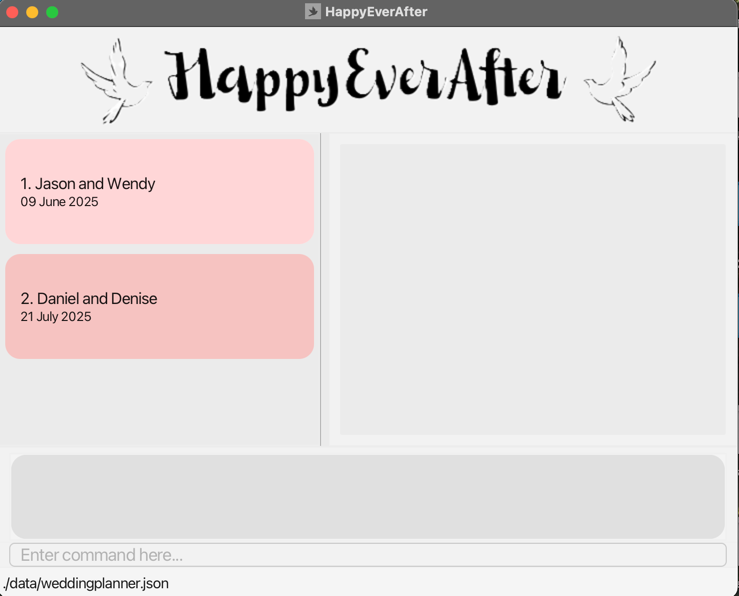
Type the command in the command box where it says
Enter command here...and press Enter to execute the command.- See features for a comprehensive list of all commands and command summary for a brief overview.
- Some example commands you can try:
list: Lists all weddingsclear: Clears all weddingsexit: Exits HappyEverAfternew n/John and Janice's Wedding d/21082025: Creates a new wedding namedJohn and Janice's Weddingon21 Aug 2025. Enter the subsequent commands when prompted.add n/Janice p/98765432 e/janice@gmail.com a/Block 09 Prince George's Park t/bride: AddJaniceas abrideadd n/John p/98989898 e/john@gmail.com a/Block 10 Prince George's Park t/groom: AddJohnas agroom
sort: Sorts weddings in ascending order of the date
Feature-Preface
Some things you need to know about the features before getting started:
Commands are case-insensitive.
- e.g.
Helpandhelpwill run the same command. - However, parameters are not case-sensitive, unless stated otherwise.
- e.g.
Words in
UPPER_CASEare the parameters to be supplied by you, the user.- e.g. in
new n/WEDDING_NAME, you should replaceWEDDING_NAMEwith the actual name, likenew n/John & Mary
- e.g. in
For commands requiring an
INDEX(such asopenordelete), all inputs must be a valid positive integer passed to theINDEXfield.- If an invalid
INDEXis passed (such as if theINDEXis larger than the number of weddings), an error message will be displayed.
- If an invalid
Items in square brackets are optional.
- e.g
n/NAME [t/TAG]can be used asn/John Doe t/friendor simply asn/John Doe.
- e.g
Items with
… after them can be used multiple times including zero times.- e.g.
[t/TAG]…can be used as(i.e. 0 times),t/friend,t/friend t/familyetc.
- e.g.
Parameters can be provided in any order.
- e.g. if the command specifies
n/NAME p/PHONE_NUMBER,p/PHONE_NUMBER n/NAMEis also acceptable.
- e.g. if the command specifies
Extraneous parameters for commands that do not take in parameters (such as
help,list,exitandclear) will be ignored.- e.g. if the command specifies
help 123, it will be interpreted ashelp.
- e.g. if the command specifies
Special role tags to identify the bride and groom:
- Use
t/brideto designate a person as the bride - Use
t/groomto designate a person as the groom - A wedding must have both a bride and groom to be valid
- Use
GUI Overview
HappyEverAfter uses a Graphical User Interface (GUI) to display visual information to the user. Here is a brief overview of the GUI.
On the left pane of the GUI, all weddings are listed. If you have more weddings than the height of the left pane, you can use the mousewheel
to scroll down the weddings. Each wedding is displayed with the name of the wedding (eg Jason and Wendy) and the date of the wedding (eg 09 June 2025). The
index of the wedding is displayed on the left of the name, from 1 onward. You can use this index for commands such as open and delete.
At the bottom of the GUI is the section for you to enter commands. Type in your command in the pane where it says
Enter command here... and press Enter to run the command. The result of the command will be displayed in the grey pane
above the input box.
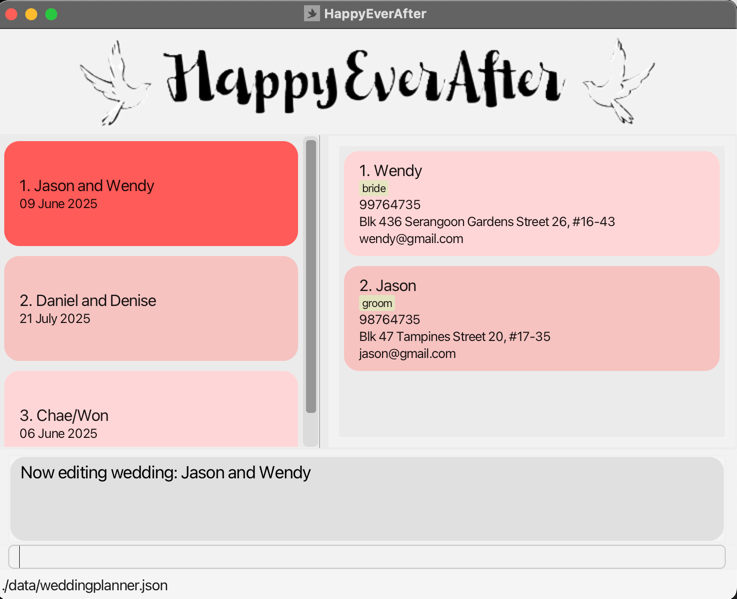
When a wedding is opened using the open command (eg open 1), it is set as an active wedding and displayed
on the right pane of the GUI. The pane displays all members of the wedding, starting with the bride and groom.
If the number of members exceeds the height of the pane, you can scroll within the pane using your mousewheel. Each member card
displays the following information in order : The name of the person, the tags of the person, the phone number of the person,
the address of the person and the email of the person.
Features
Wedding Management
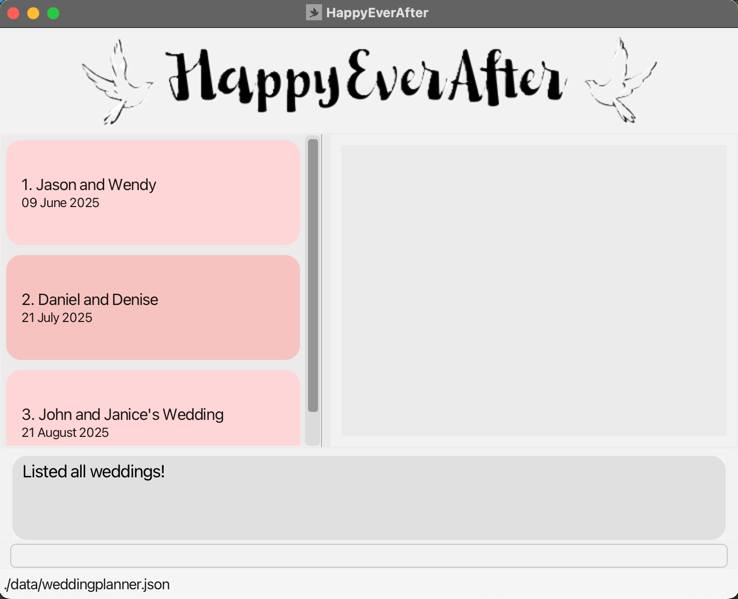
Listing all weddings: list
You can view a list of all weddings in the wedding planner.
Format: list
Creating a wedding: new
You can create and add a new wedding to the wedding planner.
Format: new n/WEDDING_NAME d/DATE
Example:
new n/John & Mary d/25122025: Adds a wedding namedJohn & Marythat happens on25 December 2025.
- HappyEverAfter will prompt you immediately to enter the details of the bride and the groom to confirm
the wedding. Follow the instructions given in the prompt to complete the creation of the wedding.
- Each wedding must have exactly one bride and one groom.
- Use
t/brideto designate a person as the bride. - Use
t/groomto designate a person as the groom.
- See Adding a person to a wedding for more details.
- You cannot add a wedding with the exact same
WEDDING_NAMEandDATEas one that already exists.
You will not be able to issue other commands while in the process of creating a wedding
To cancel creating the wedding, type n. To exit the app, type exit.
Restrictions on Parameters
Names:
- Should not be blank.
- Should be case-sensitive.
- Can contain any amount of alphanumeric characters, spaces, and special characters.
- Does not have to match the name of the bride and groom. You can name your wedding to what you see fit.
Dates:
- The
DATEParameter has to be in the formatDDMMYYYY.- e.g
25122025for the 25th December 2025
- e.g
- Can be any date, past, present or future. We allow past dates for cases such as keeping records on past wedding events.
Opening a wedding: open
You can open a wedding from the Wedding Planner to view its people and edit its people.
Format: open INDEX
Examples:
open 1: Opens the first wedding in the listopen 3: Opens the third wedding in the list
After a wedding is open, the members belonging to that wedding will be displayed on the right pane as shown below. You can then proceed to perform further operations like adding members or editing members.:
Tip: You can open a new wedding without closing the current one. HappyEverAfter will automatically close the current wedding and open the new one.
Closing the current wedding: close
You can close the currently open wedding project to return to the main view.
Format: close
Sorting weddings by date: sort
You can view the displayed weddings by chronological order - with the earliest wedding at the top.
Format: sort
Deleting a wedding: delete
You can delete a wedding from the wedding planner based on the provided index.
Format: delete INDEX
Examples:
delete 1: Deletes the first wedding in the list)delete 3: Deletes the third wedding in the list)
- You can delete any wedding (even the open one) regardless if there is a wedding open or not.
- When deleting the open wedding, it will close it on the right pane accordingly.
Clearing all weddings: clear
Deletes All weddings and associated contacts from the wedding planner.
Format:
clearfollowed byywill delete all weddings from the wedding planner.clearfollowed bynwill abort the delete operation, and it will not clear the weddings.
- To prevent accidental deletions, there will be a secondary confirmation prompt issued after
clearto confirm the deletion. - If you issue another command before issuing either the
yorncommand, the clearing will be automatically aborted.
Tip: You can use clear to set up a fresh wedding planner if you don't want the sample data.
Person Management
Adding a person to a wedding: add
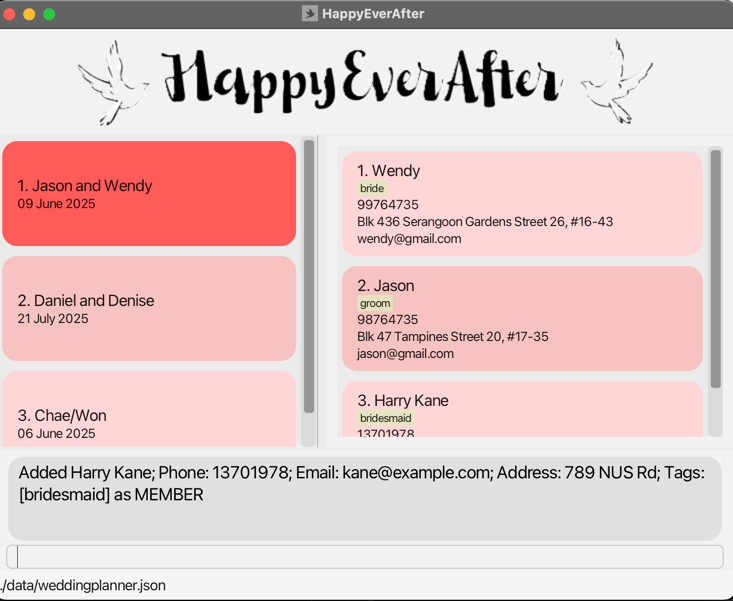
You can add a person to the opened Wedding Planner. You can use tags to specify if the person is a bride, groom, or other wedding party participant. The new person will be displayed on the right pane of the GUI.
Format: add n/NAME p/PHONE_NUMBER e/EMAIL a/ADDRESS [t/TAG]…
Examples:
add n/Mary Muller p/98765432 e/mary@example.com a/123 Kent Ridge St t/brideadd n/John Danny p/89989788 e/john@example.com a/456 UTR Ave t/groomadd n/Harry Kane p/13701978 e/kane@example.com a/789 NUS Rd t/bridesmaidadd n/Alan Wayne p/98775633 e/alan@example.com a/123 Clementi Rd t/photographer
Restrictions on Parameters
Names:
- Should not be blank.
- Can be any length.
- Can only contain alphanumeric characters, spaces and limited special characters(
,or'or.or-) - Can not start with the special character.
- Should not be identical to any person already in the wedding.
- e.g. If a person with the name of "Ma Dong-Seok" already exists in the wedding,
- A person by the name of "ma Dong-Seok" can be added.
- A person by the name of "Ma Dong-Seok" (with two spaces between "Ma" and "Dong-Seok") can be added.
- A person by the name of "Ma Dong-Seok" cannot be added.
- e.g. If a person with the name of "Ma Dong-Seok" already exists in the wedding,
Phone numbers:
- Should not be blank.
- Should only contain numbers (no letters, spaces or special characters).
- Can be any length.
Email addresses:
- Should be of the format
LOCAL_PART@DOMAIN, with the following constraints: LOCAL_PARThas the following constraints:- Should only consist of alphanumeric characters and these special characters:
+_.-. - Should not be blank.
- Should not start or end with any of the above special characters.
- Should only consist of alphanumeric characters and these special characters:
DOMAINis a domain name, which is made up of 1 or more domain labels separated by periods.- Each domain label has the following constraints:
- Be at least 2 characters long.
- Should start and end with alphanumeric characters.
- Should consist only of alphanumeric characters, separated only by hyphens, if any.
- Examples of valid emails:
admin@localhoste1234567@u.nus.educhae-won@gmail.comfong_hrishi@out-look.com
Addresses:
- Should not be blank.
- Can take any value.
Tags:
- Should consist only alphanumeric characters, with no spaces
- Are case-sensitive: A tag "Brother" is considered different from "brother".
- The only exception to this are the
groomandbridetags. These tags are case-insensitive. - Different casing variations of them (e.g., "GROOM, "Groom", "gRoOm") will not be permitted if the wedding already has a person with that corresponding tag.
- The only exception to this are the
- Only one person in each wedding may have the
groomandbridetag, specified witht/groomandt/briderespectively.- However, a bride and groom may have other tags.
- Can have any number of tags (including 0)
Finding people: find
You can search for all weddings that contain the names of people that match any one of the provided search terms.
Format: find [NAME]…
Examples:
find Sunfind Sun Hrishifind sun timo
Note:
- Search term should not be blank or consist only of spaces. For examples,
findwill be counted as an invalid command. - Search terms are case-insensitive. Typing
find sunwill produce a match for a person namedSUN - You can provide any number of search terms, separated by spaces.
findwill match names to at least one of the search terms. For instance,find sun timowill return results for both the person namedsunand the person namedtimo.- The ordering of the terms does not matter. For example,
find Zhe Haowill return the same result asfind Hao Zhe.
- Names do not have to be an exact match for the search term. For example,
find timowill result a result for a person namedtimothy- However, the search term must be continuous. For example, if the person is named
timo,find timwill return a result butfind tiowill not return a result.
- However, the search term must be continuous. For example, if the person is named
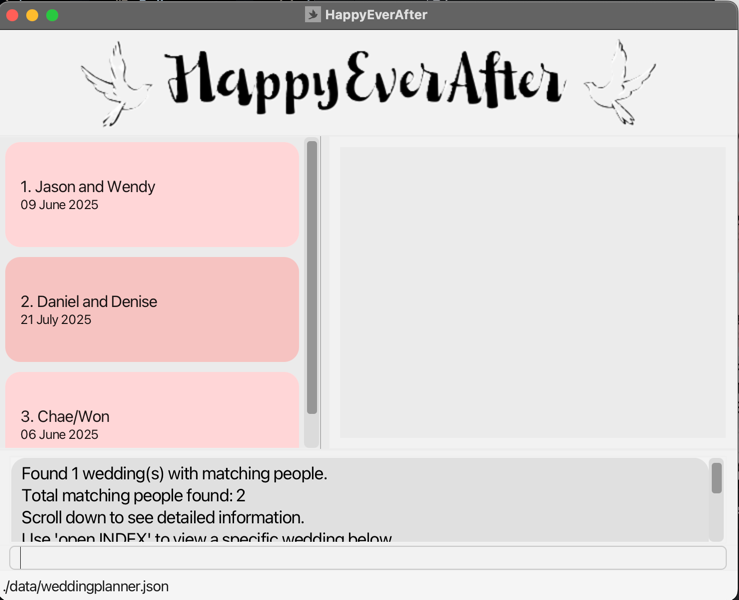
The result of the search will be outputted on the result box above the command input box. You can then use the open command to
open a wedding based on the result. A sample output is shown below:
Filtering by tag: filter
You can filter the list of the currently opened wedding to display all people that match at least one of the tags.
Format: filter [TAG]…
Examples:
filter bride: Displays only the bridefilter groom: Displays only the groomfilter: Displays all people without filteringfilter photographer caterer guest: Displays all people that has at least one of the tags. For example, if Person 1 has thephotographertag and Person 2 has theguesttag, both Person 1 and Person 2 will be displayed in the filtered result.
Note:
- Tags are case-sensitive.
- Tags can only be alphanumeric characters.
- Tag matching is done on an individual basis.
- For example,
filter photographer guestwill match all people that have eitherphotographerorguesttag or both tags. The person does not need to have the exact same tags as all the tags specified in the filter command. - Similarly,
filter photographerwill match a person that has both the tagsphotographerandguest. The filter command does not have to contain all tags for the person; it only has to match at least one.
- For example,
- Tag matching is done on a complete string comparison basis.
- For example,
filter phowill not match a person with the tagphotographer. The individual tag string must be an exact match.
- For example,
Tip: If you want to clear the filters, use the filter command with no tags, i.e. filter
Removing a person: remove
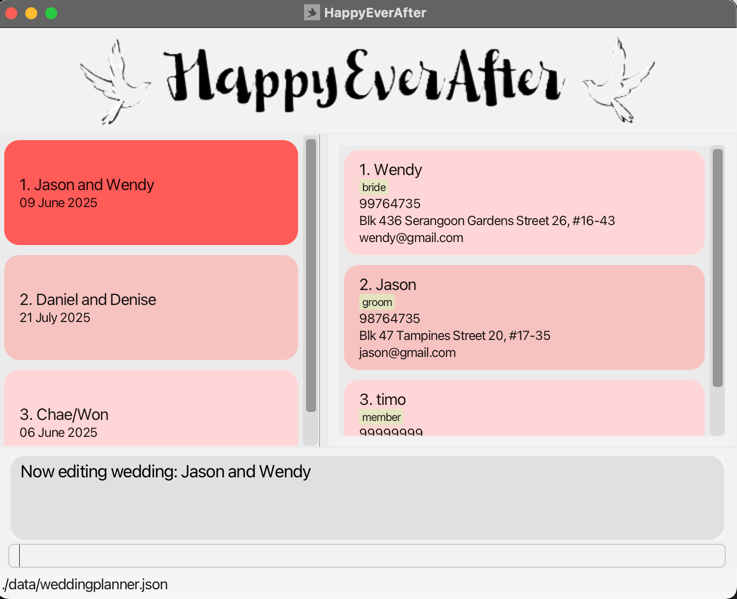
You can remove a person from the currently opened wedding based on the provided index. The index refers to the index number shown in the displayed list. The index must be a positive integer. The active wedding pane will be automatically updated with the new list of members
Format: remove INDEX
Example:
remove 3: Removes the third person in the list
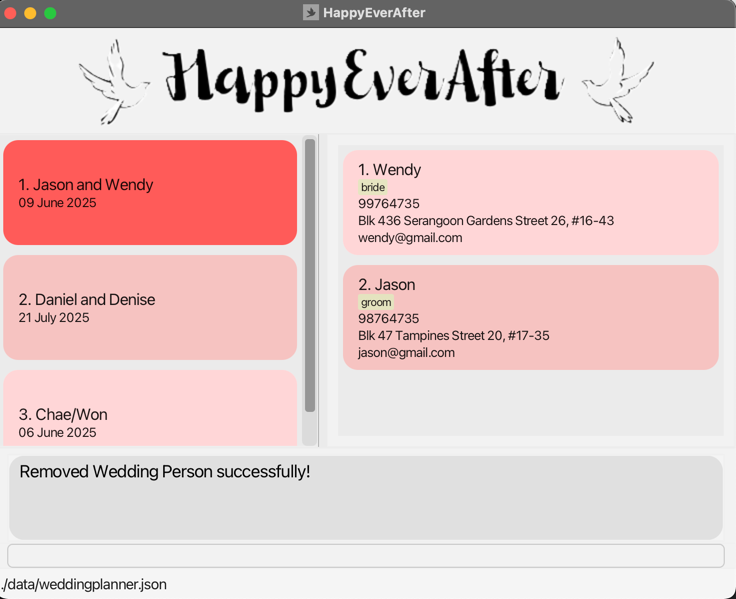
In the example usage below, issuing remove 3 will remove the person named timo from the active wedding.
After removing:
Note:
- You cannot remove a bride or groom from a wedding. Every wedding must have both roles.
Editing a person: edit
You can edit the details of a person in the currently opened wedding.
Format: edit INDEX [n/NAME] [p/PHONE] [e/EMAIL] [a/ADDRESS] [t/TAG]...
Examples:
edit 1 p/91234567 e/newemail@example.comwill update thephoneandemailof the person at index1to be91234567andnewemail@example.comrespectively.edit 2 n/New Name a/New Addresswill update thenameandaddressof the person at index2to beNew NameandNew Addressrespectively.
Note:
- You cannot edit the
bride/groomtags of a person. - At least one field must be provided for editing.
- When editing tags, the existing tags of the person will be removed.
- e.g. if the person already has the tag
Brother, and you want to add a new tagComing, you will have to run the commandedit INDEX t/Brother t/Coming. - If you want to remove all tags from a person, you can enter
t/with no tags behind. This will remove all tags from the person at the specified index.
Restrictions on Parameters:
- See Restrictions on Parameters in the add command for more details.
Tip: If you need to change the bride or groom of a wedding, use edit to change their information instead of editing the tag of another person to make them bride/groom.
System commands
Viewing help: help
You can view a message providing a web link to access the User Guide.

Format: help
Exiting the program: exit
You can exit the HappyEverAfter application.
Format: exit
Data Storage
Saving the data
HappyEverAfter data is saved in the hard disk automatically after any command that changes the data. There is no need to save manually.
Editing the data file
HappyEverAfter data is saved locally as a JSON file in [JAR file location]/data/weddingplanner.json.
Advanced users are welcome to update the data directly by editing that data file.
Caution:
If your changes to the data file makes its format invalid, HappyEverAfter will discard all data and start
with an empty data file at the next run. Hence, it is recommended to make a backup of the file before editing it.
Furthermore, certain edits can cause HappyEverAfter to behave in unexpected ways (e.g., if a value entered is
outside the acceptable range). Therefore, edit the data file only if you are confident that you can update it correctly.
FAQ
Q: How do I transfer my wedding planner data to another computer?
A: Install HappyEverAfter on the other computer and replace the data file it creates with the file from your original installation (located at /data/weddingplanner.json).
Q: Can I add multiple weddings at once?
A: No, you need to create weddings one at a time using the new command. Alternatively, for advanced users: you may update the data file yourself. Look through the "Editing the data file" section for more support.
Q: What happens if I try to add a second bride or groom to a wedding?
A: The system will display an error message as the current implementation of HappyEverAfter supports only one bride and one groom per wedding.
Q: How many weddings can I have in HappyEverAfter?
A: There is no limit to how many weddings can be added. However, we would advise you to keep it under a reasonable amount (such as 100) as many weddings may lead to performance loss.
Q: How many people can I add to a wedding?
A: As of the most recent version, you can add at most 100 people for one wedding.
Q: Can I add international phone numbers?
A: Unfortunately, international phone numbers will only be implemented in future. However, HappyEverAfter supports variable length numbers for phone numbers. One possible option would be to use a custom combination of numbers to denote the + symbol such as 000.
Q: I renamed the bride and groom of a wedding. How do I change the wedding name?
A: The system currently does not support the editing of wedding names directly. However, you may update the data file yourself. Look through the "Editing the data file" section for more support.
Command summary
| Action | Format, Examples |
|---|---|
| Create Wedding | new n/WEDDING_NAME d/DATEe.g., new n/John & Mary d/25122025 |
| Open Wedding | open INDEXe.g., open 2 |
| Close Wedding | close |
| List Weddings | list |
| Sort Weddings by Date | sort |
| Delete Wedding | delete INDEXe.g., delete 2 |
| Clear All Weddings | clear |
| Add Person | add n/NAME p/PHONE e/EMAIL a/ADDRESS [t/TAG]...e.g., add n/Mary Smith p/98765432 e/mary@example.com a/123 Wedding St t/bride |
| Find Person | find [SEARCH TERMS...]e.g., find John Doe |
| Filter People by Tag | filter [TAGS...]e.g., filter groom bride |
| Remove Person | remove INDEXe.g., remove 3 |
| Edit Person | edit INDEX [n/NAME] [p/PHONE] [e/EMAIL] [a/ADDRESS] [t/TAG]...e.g., edit 1 p/91234567 e/newemail@example.com |
| Help | help |
| Exit | exit |